How to Install and Set Up B1G Player on Firestick, Android, Smart TV, iOS, MAG & PC

Install B1G Player on your preferred device and connect your IPTV playlist, M3U URL, portal login, or compatible B1G Player access details in minutes. This complete installation guide explains how to download B1G Player, set up your account, add login details, and start using the IPTV media player on supported devices.

Whether you use Amazon Firestick, Android TV, Android phones, Smart TVs, MAG devices, iPhone, iPad, or PC, this guide will help you complete the setup quickly and correctly.
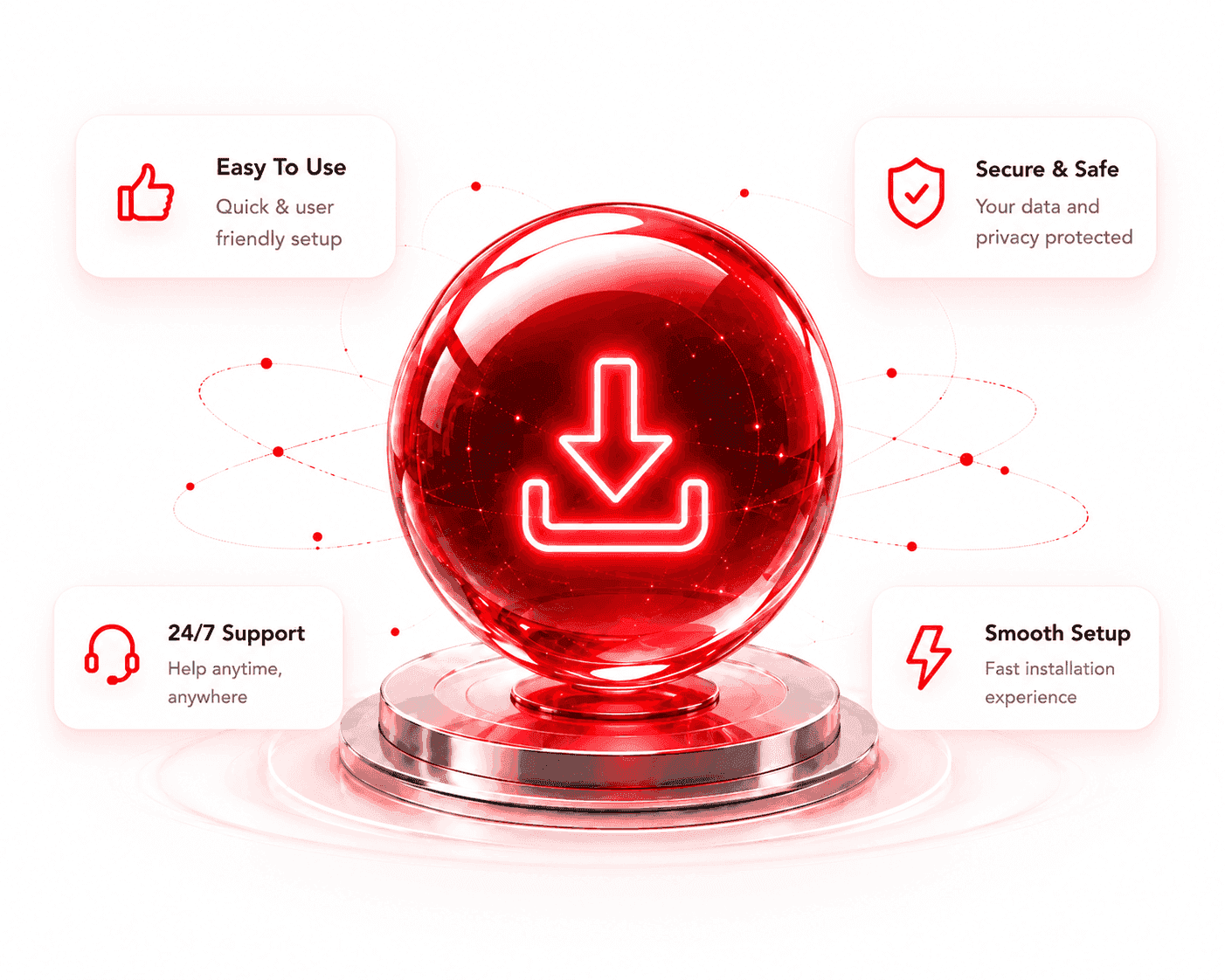
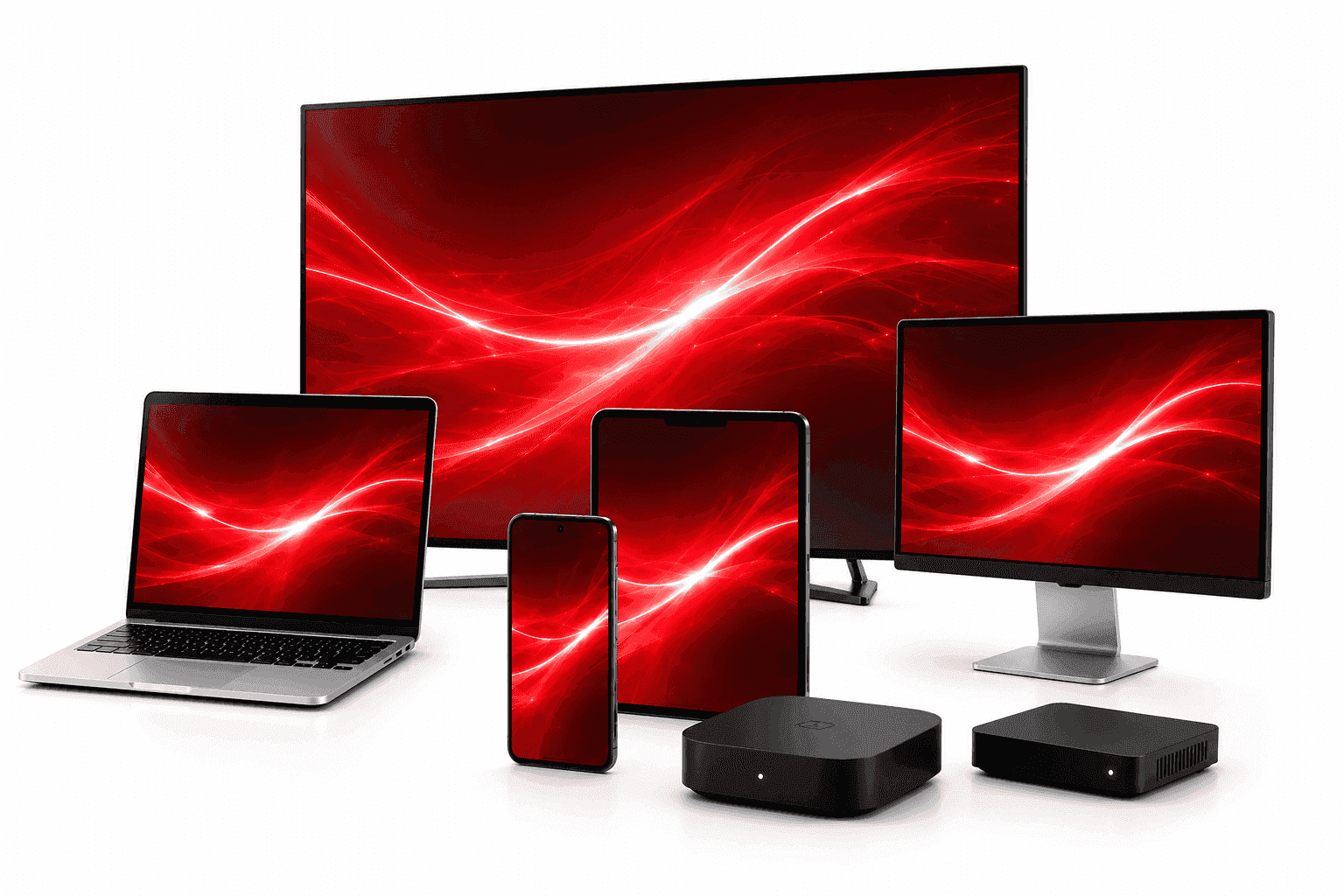
B1G Player Installation Guide Visual

What You Need Before Installing B1G Player

Before starting the B1G Player installation process, make sure you have everything required for a successful setup.

01

Stable Internet Connection

A fast and reliable internet connection helps reduce buffering and improves playback performance.
02

Active IPTV Access

You need one of the following:
  • M3U Playlist URL
  • Portal Login Details
  • Xtream Login Credentials
  • Compatible B1G Player Access Details
03

Supported Device

B1G Player is compatible with supported streaming devices, Android-based systems, mobile devices, and selected Smart TV platforms.
04

Login Information Ready

Have your playlist URL, portal URL, username, and password available before beginning installation.
Installation Guide

Supported Devices for B1G Player

B1G Player supports a wide range of devices.

How to Install B1G Player on Firestick

Amazon Firestick remains one of the most popular devices for IPTV media player installation.

Downloader Code4172090
Supported Devices
1

Open Downloader

Launch the Downloader application on your Firestick. If Downloader is not installed, download it first from the Amazon App Store.

2

Enter Downloader Code

Enter the following Downloader Code: 4172090. The installer will begin preparing the B1G Player download.

3

Download and Install

Download B1G Player and complete the installation process.

4

Launch the IPTV Player

Open B1G Player after installation is complete.

5

Select Add Playlist

Choose "Add Playlist" from the main screen.

6

Enter IPTV Login Details

Add one of the following: M3U Playlist URL, Portal Login, Xtream Credentials, Compatible B1G Player Login.

7

Save and Connect

Save your settings and allow categories, channels, VOD sections, and EPG information to load.

8

Start Using B1G Player

Your IPTV media player is now ready to use.

B1G Logo

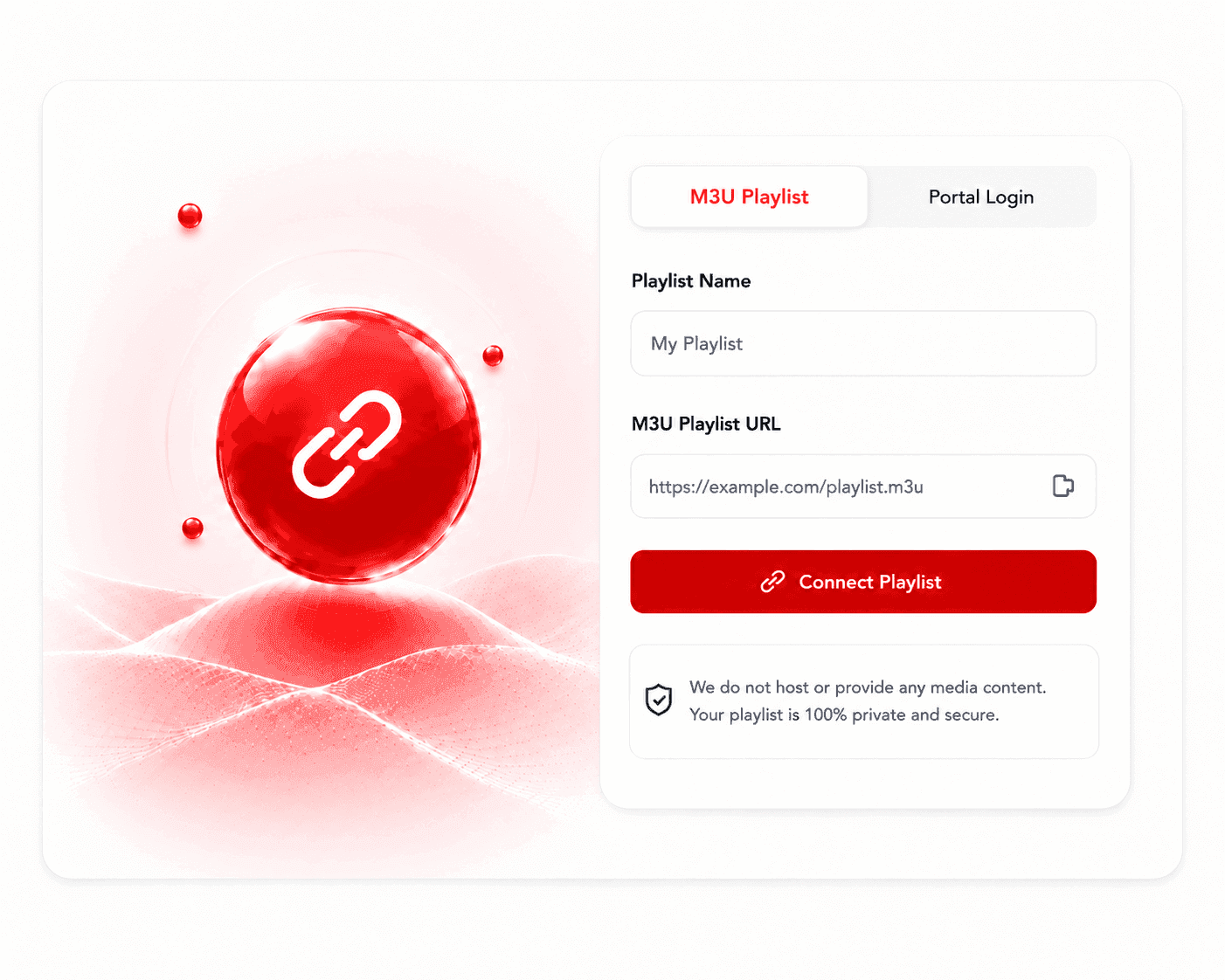
How to Add an M3U Playlist to B1G Player

Many users already have IPTV access and only need to connect a playlist. To add an M3U playlist to B1G Player, follow these simple steps:

Open B1G Player
Select Add Playlist
Choose M3U Playlist URL
Enter your playlist URL
Save settings
Wait for categories to load
Your playlist will now be available inside the player.
How to Add an M3U Playlist to B1G Player

Common Installation Problems and Solutions

Helpful answers for common installation and login issues.

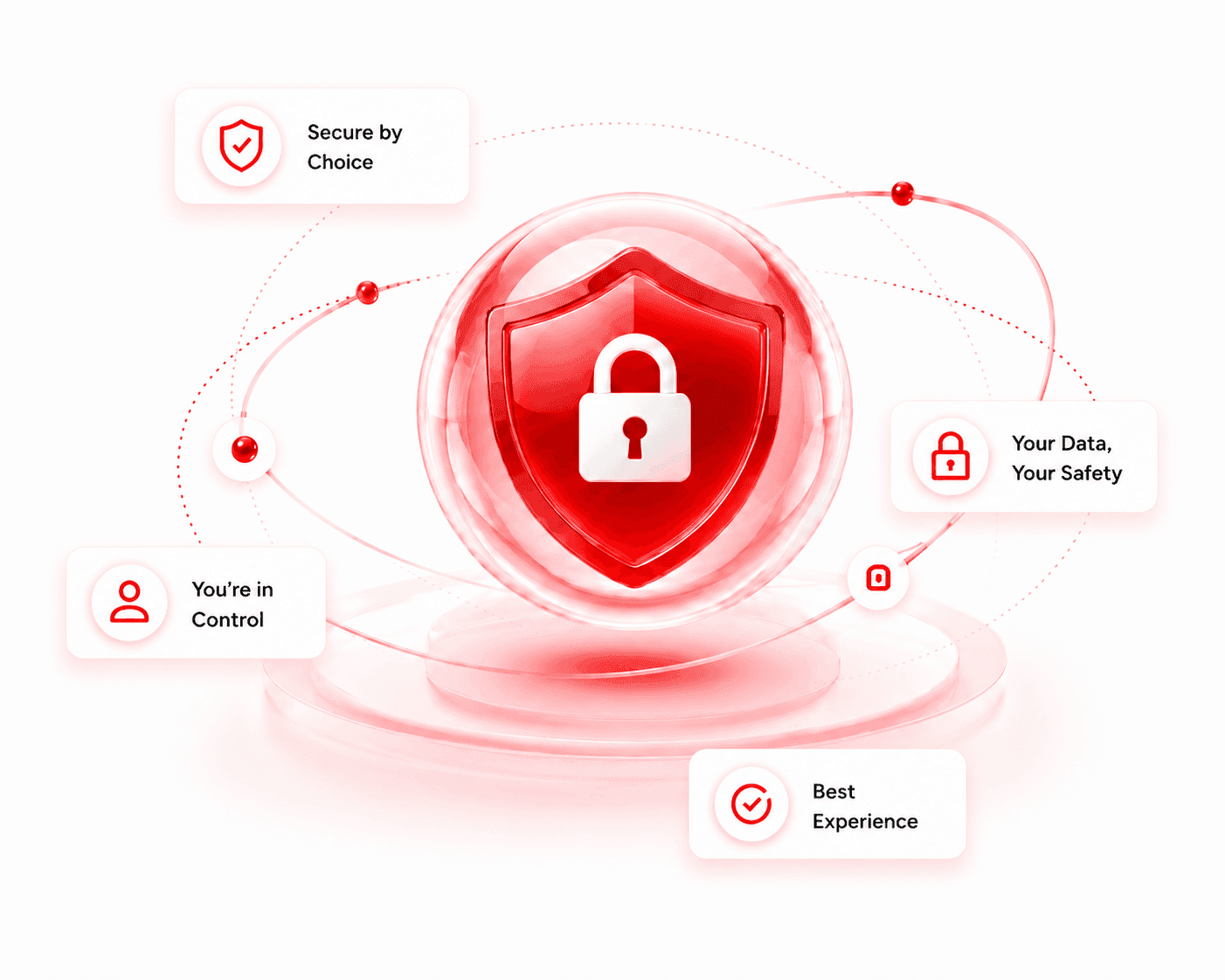
B1G Player Security Visual

Is B1G Player Safe to Install?

B1G Player is designed as an IPTV media player that allows users to manage their own playlist and portal login details.

For the best experience, only use trusted IPTV sources and keep your login credentials secure. Users maintain full control over the content they connect to the player.

Frequently Asked Questions

Quick answers to common questions about setting up and using B1G Player.

Install B1G Player Today

Download B1G Player, connect your IPTV playlist or portal login details, and enjoy a modern IPTV media player experience across supported devices. Whether you use Firestick, Android TV, Smart TV, iPhone, iPad, MAG, or PC, B1G Player provides a simple and reliable setup process.

Chat with us